
How To Bypass Admin Lock On Chromebook
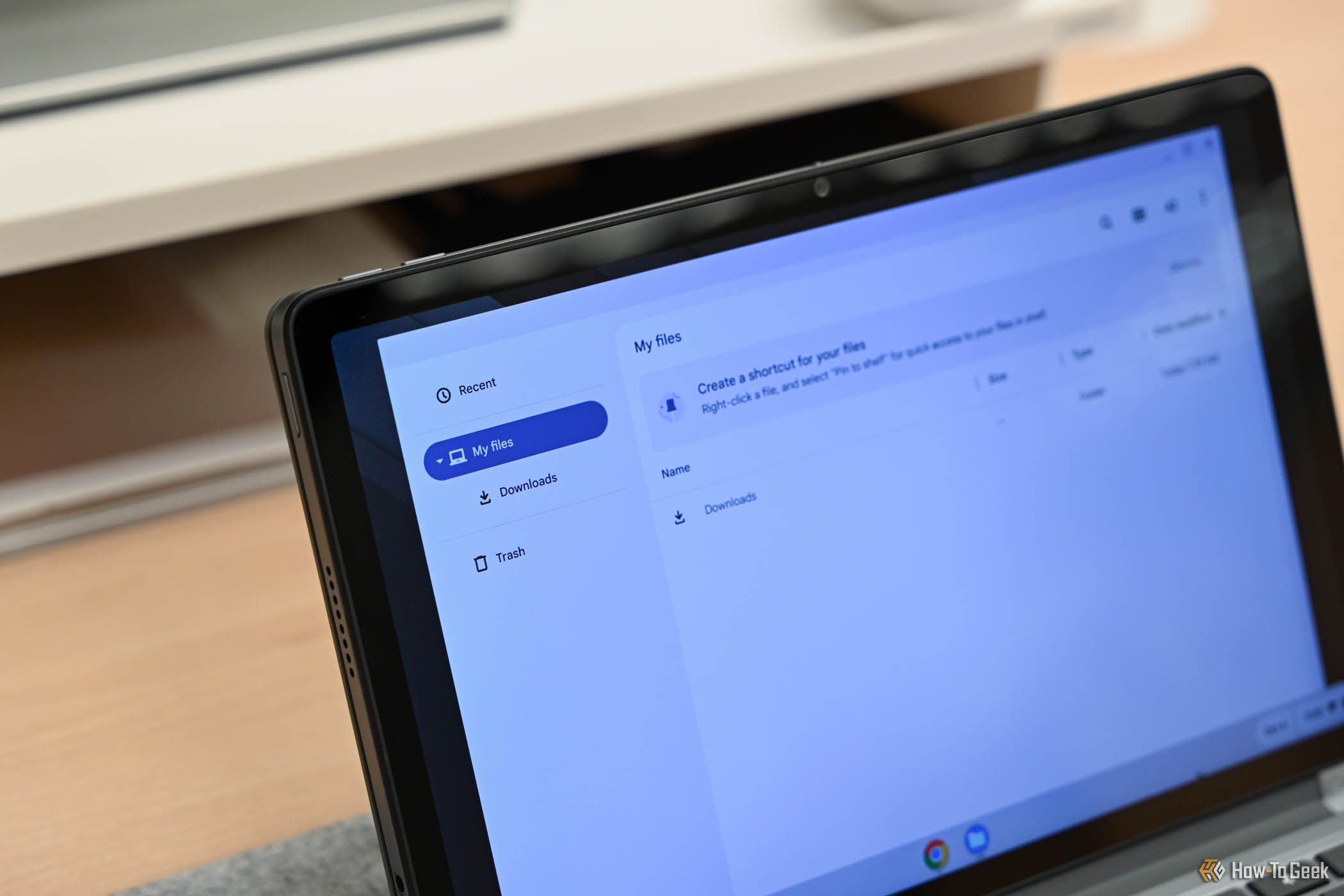
Alright, imagine you're at home, and your tech-savvy roommate has decided to lock you out of your own Chromebook. You're standing there, staring at the screen, feeling about as useful as a chocolate teapot. Sound familiar? Don't worry, we've all been there. Today, we're going to tackle this little admin lock predicament and get you back into your digital sanctuary.
First Things First: Why the Lock?
Before we dive into the bypassing business, let's understand why your Chromebook decided to lock you out in the first place. It's not personal, I promise. Your Chromebook might have locked you out for any of these reasons:
- Too many incorrect password attempts (yes, even Chromebooks have their limits).
- You've been away from your Chromebook for a while, and it went into sleep mode, then decided to lock itself for security reasons.
- Your Chromebook is being extra cautious and thinks you've been hacked (it's just looking out for you, really).
Now that we've established that your Chromebook isn't plotting against you, let's get you back in.
Must Read
Method 1: The Power Wash
This method is like giving your Chromebook a digital shower. It'll wipe away all the locks and get you back to a fresh start. Here's how:
- Press and hold the Power button for about 10 seconds. Your Chromebook will turn off.
- Press and hold the Power button again until the Chromebook turns back on. As soon as you see the screen light up, press and release the Power button, then press and hold the Refresh button (it's next to the Power button).
- Keep holding the Refresh button until you see a screen with a message that says, "Recovery is needed."
- Press Ctrl + D to start the recovery process. Your Chromebook will reboot, and you should be able to log in without any admin lock issues.
Easy peasy, right? Now, let's talk about what to do if the power wash didn't work.
Method 2: The Guest Account Escape
Remember when you first set up your Chromebook, and it asked if you wanted to create a guest account? Well, that guest account is about to become your new best friend. Here's how to use it to bypass the admin lock:
- Turn on your Chromebook. When you see the login screen, press Ctrl + Alt + Delete.
- A menu will pop up. Click on Browse as Guest. This will take you to the guest account.
- Once you're in the guest account, click on the time in the bottom right corner. A menu will drop down. Click on Settings.
- In the Settings menu, click on Users.
- You should now see a list of users. Click on the Add Person button.
- Create a new user with admin privileges. Once you've done that, sign in with the new user.
- Now that you're in as an admin, you can remove the old admin account that was causing trouble.
And there you have it! You're back in your Chromebook, ready to tackle the digital world once again. Just remember, next time you're tempted to lock your roommate out, maybe leave a note instead. It's the digital equivalent of a 'Kick Me' sign, and it's much friendlier.