
How To Bypass Admin On Chromebook
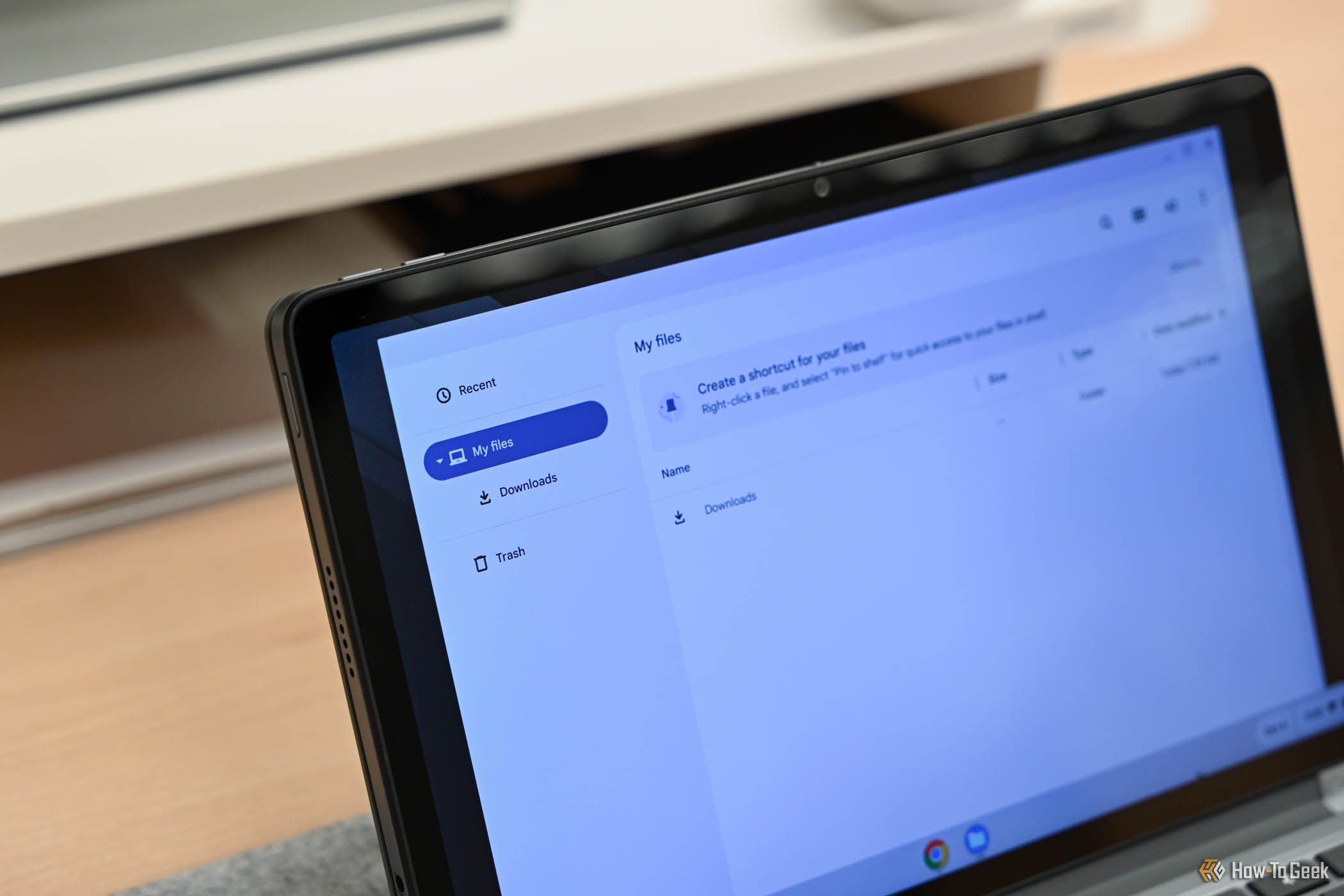
So, you've found yourself in a pickle with your Chromebook, huh? Stuck in a loop of admin frustration? Don't worry, we've all been there. Let's grab a coffee and chat about how to bypass that admin on your Chromebook. Sound good?
First things first, why the sneaky admin bypass?
Now, I'm not here to judge. Maybe you forgot your admin password, or perhaps you're just curious. Either way, let's dive into the world of admin bypasses. But remember, with great power comes great responsibility. Don't go causing any trouble, alright?
Method 1: The Powerwash
Alright, let's start with the easiest method. It's called a 'powerwash', and it's basically a factory reset. But don't worry, it won't erase your files (well, not all of them). Here's how:
Must Read
- Press and hold Esc + Refresh (next to the power button) for about 10 seconds.
- When you see the recovery screen, let go of both keys.
- Press Ctrl + D to start in developer mode.
- When you see the 'Chrome OS is missing or damaged' screen, press Ctrl + F to start recovery.
- Follow the on-screen instructions to powerwash your Chromebook. Your admin account will be gone, but your files (if backed up) will be safe.
Easy peasy, right? But what if you want to keep your files? Let's move on.
Method 2: The Guest Mode Escape
Now, this one's a bit sneaky. It involves using the guest mode to create a new user. Here we go:
- Sign out of your admin account.
- Click on the profile icon at the bottom left corner of the sign-in screen.
- Select 'Add person' and create a new user. Make sure to select 'Create and switch to this person' when prompted.
- Sign in to the new user account. Voila! You've bypassed the admin.
But what if you want to get back into your admin account? Let's tackle that next.
Method 3: The Recovery Mode Admin Bypass
Alright, this one's a bit more involved. We're going to use recovery mode to create a new admin account. Ready?
- Shut down your Chromebook.
- Press and hold Esc + Refresh (next to the power button) while turning it back on.
- When you see the recovery screen, let go of both keys.
- Press Ctrl + D to start in developer mode.
- Press Ctrl + F to start recovery.
- When you see the 'Chrome OS is missing or damaged' screen, press Ctrl + L to launch recovery.
- Connect to a Wi-Fi network if prompted.
- Select 'Powerwash' and wait for the process to complete.
- When your Chromebook restarts, press Ctrl + Alt + F + F to open the shell.
- Type 'shell' and press Enter.
- Type 'sudo add-user --username newadmin --password newpassword' (replace 'newadmin' and 'newpassword' with your desired admin username and password) and press Enter.
- Type 'reboot' and press Enter.
- Sign in with your new admin account.
And there you have it! Three methods to bypass that pesky admin on your Chromebook. Remember, with great power comes great responsibility. Don't go causing any trouble, alright?
Now, who's ready for a refill? My treat!